Gameplay: Tips and Tricks
Here are some helpful tips and tricks for speeding up your play on MTGO!
Here are some advanced tips and tricks for Magic Online users.
The Phase Bar & Setting Stops
Auto-Yields & Automatic Decisions
Triggered Ability Options
Odds & Ends
The Phase Bar & Setting Stops
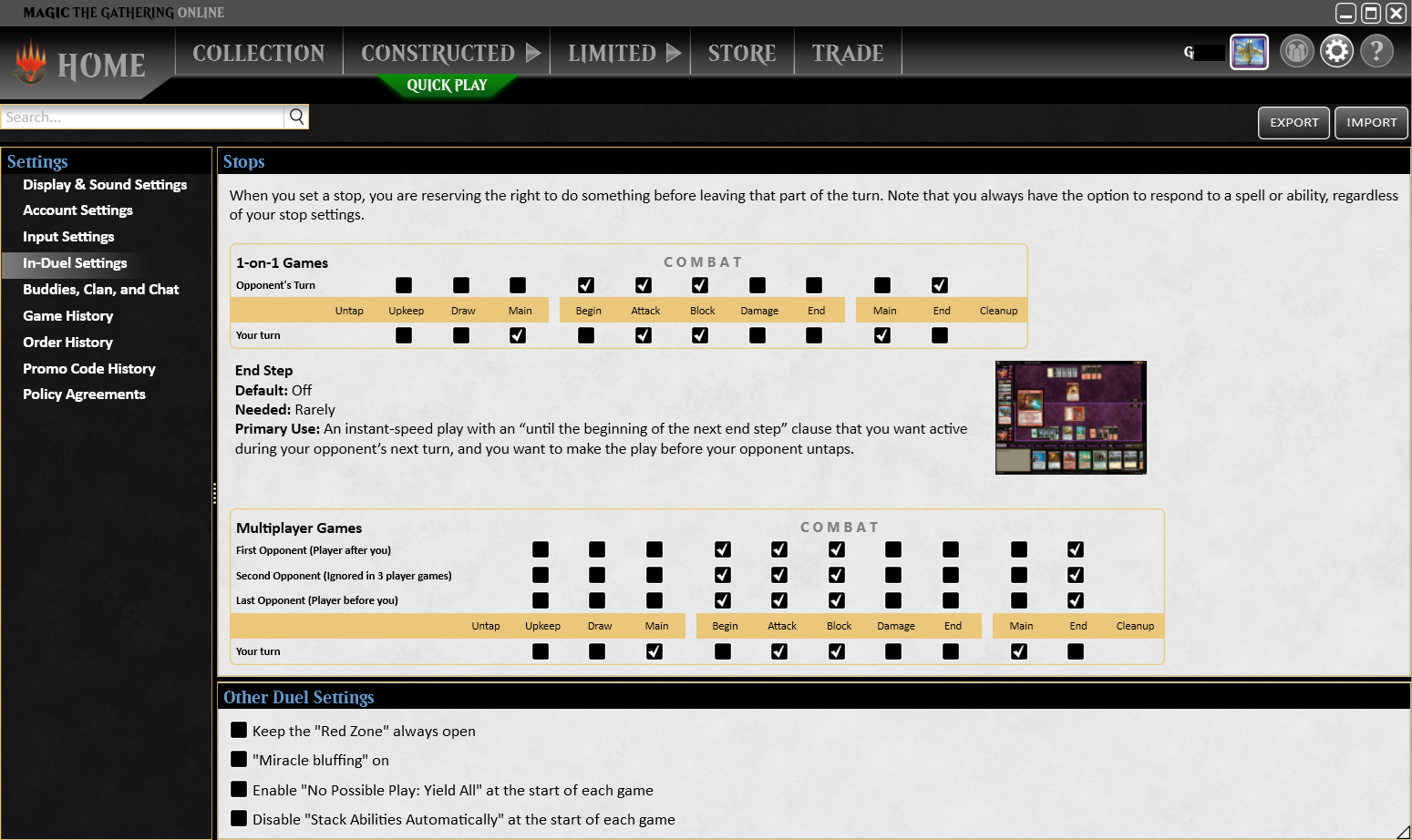
Magic Online uses stops to give players priority during different phases of the game so they can cast spells and use abilities. By default, Magic Online has the most common stops set, but players can enable or disable stops for every phase and step during the turn in a game of Magic.
If a stop is not set for a certain phase, then you will not be able to cast a spell or activate an ability during that phase. There are two exceptions:
- You are always given the opportunity to respond to other players’ spells and abilities regardless of whether you have a stop set.
- If you control a creature, the game will always provide you a chance to Declare Attackers and Declare Blockers each turn, even if those stops aren’t set.
There are a handful of ways you can change the stops you have set in Magic Online.
Before a Match Begins: Click on the Account tab at the top, then In-Duel Settings on the left. Toggle the arrows on and off to set stops – the opponent’s turn on top, your turn on bottom – and use the links provided for each game step to determine what works best for you.
During a Game: Manipulating the Phase Bar during the game has two distinct components:
- If you desire real-time control over stops, the Phase Bar can be unlocked by clicking the padlock icon on the Bar’s right-hand end. Once unlocked, you can left-click to turn stops on and off.

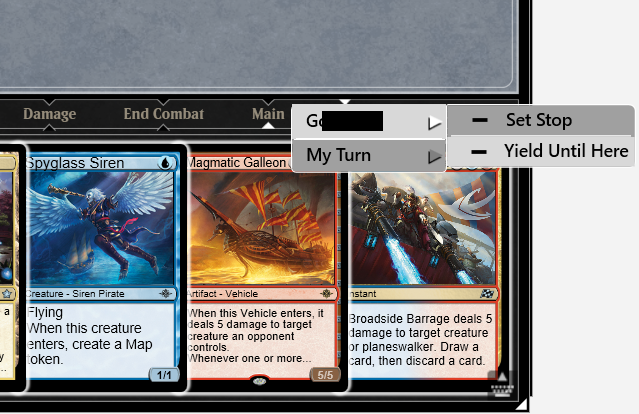
- While the Phase Bar is locked, you can still turn stops on and off. First, right-click the phase or step you want to toggle, then left-click either Stop on opponent’s turn or Stop on my turn as appropriate (top row for opponent, bottom row for you). A checkmark indicates the stop is currently turned on.
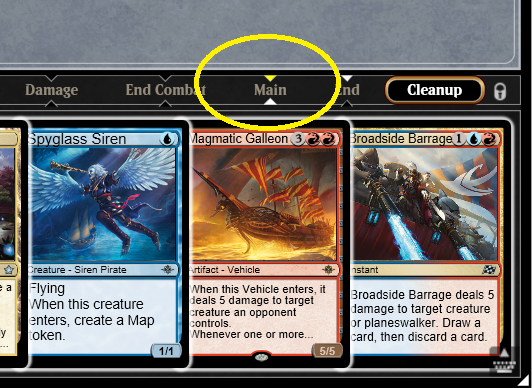
- From that right-click menu, you can also choose Yield Until Here on Opponent’s Turn or Yield Until Here on My Turn to skip all priority until the next instance of the clicked phase. The chosen phase will turn yellow on the Phase Bar. The game must be past the chosen phase on the current turn to activate this feature.
Reminder: The stop must be turned on before the game would begin that phase or step.
Yield Until Next End Step: Choosing this from the Options menu (right-clicking within the battlefield/clicking gear icon) will pass priority until the current turn’s End of Turn step – regardless if you have the stop set of not!
Auto-Yields & Automatic Decisions
Magic Online offers the ability to set certain decisions to happen automatically, speeding gameplay. Yielding allows you to automatically pass priority to an ability. You can yield to a specific effect until end of turn or indefinitely. You can also automate a decision whether to use an optional ability upon resolution.
Tip: Pressing the 5 key at any time will remove all auto-yields and automated decisions.
To set up a yield or an automated decision, right-click an ability on the stack. This will open a menu.
Select an option from the menu:
- Yield to [effect] until end of turn
- Always yield to [effect]
When applicable, the following options also appear:
- Always yes to [effect]
- Always no to [effect]
Keyboard Shortcuts
Magic Online has many helpful keyboard shortcuts to speed gameplay. Many of them can be bound to different keys in the Account scene, using the Input Selection screen.
Ctrl — Maintain Priority
While casting a spell or activating an ability, you can maintain priority to cast another spell or activate another ability before giving your opponent a chance to respond. Hold down the Ctrl key, begin clicking to play the spell or ability, then once it reaches the stack let go of the Ctrl key. Note: This keyboard shortcut cannot be changed.
W — Auto-Tap Mana
If you have begun casting a spell, and are activating mana abilities to pay for it, you can hold the W key while clicking your land to automatically selected the first mana ability on the land. This is a great way to add a lot of mana to your pool when you don’t care about the color.
Ctrl + Z — Undo
Pressing Ctrl + Z will undo the activation of the most recent mana ability, such as tapping a land, or to re-do choices made when a spell or ability directs you to make multiple choices. You can repeat this command to undo multiple mana abilities. Mana abilities cannot be undone if it would require reversing a spell or ability that’s already reached the stack, or if a mana ability has moved a card from a hidden zone (i.e. a card drawn from Chromatic Sphere, a card milled by Millikin, etc).
1 — Pass Priority/OK
Pressing 1 is equivalent to clicking OK to the current prompt.
2 – Pass Until You Can Respond This Turn
Pressing 2 will skip all remaining stops this turn until something happens (including declaring attackers and blockers) to which you can respond or must respond. If you press it during your turn before the Declare Attackers step, the game will stop to allow you to declare attackers. Once you perform a game action, the effect of 2 is cancelled, though you can press it again to re-enable passing this turn.
6 — Yield Through This Turn
Pressing 6 will cause you to skip all remaining stops this turn. This means you cannot react to other players’ actions unless you are required to make a choice. If you press it during your turn before the Declare Attackers step, the game will stop to allow you to declare attackers.
8 — No Possible Play: Yield All
Pressing 8 will cause to skip all stops on all turns for the rest of this game, but only at times when you are unable to take any actions (no mana available and no abilities to activate). You will still have to confirm attackers and blockers.
5 — Turn Off Auto-Yields
Pressing 5 will remove all auto-yields, automated decisions, and the effects of the 2 and 6 keys
7 — Stack Abilities Automatically
Pressing 7 will automatically put all abilities that trigger at the same time, have the same text, and do not require targets onto the stack. This effect will last until the end of the game.
Example: If you control a Soul Warden, which has the ability Whenever another creature enters the battlefield, you gain 1 life, and two or more creatures enter the battlefield simultaneously, Soul Warden will trigger for each creature. With multiple copies of this trigger waiting to be put on the stack, pressing 7 will put all of them on the stack automatically. If other abilities had also triggered at this time besides Soul Warden, clicking one of the Soul Warden trigger will stack them all.
3 — Yes
Pressing 3 is equivalent to clicking the Yes button at the current prompt.
4 — No
Pressing 4 is equivalent to clicking the No button at the current prompt.
Q — Zoom
Pressing and holding Q will zoom in on the currently highlighted card.
E — Look at Face-Down Cards
Pressing and holding E will allow you to look at all your face-down cards on the battlefield.
Esc — Cancel
Pressing Esc will cancel the current selection or process. This includes casting a spell or activating an ability.
Triggered Ability Options
Magic Online has several ways to reduce the number of clicks needed to perform repetitive actions.
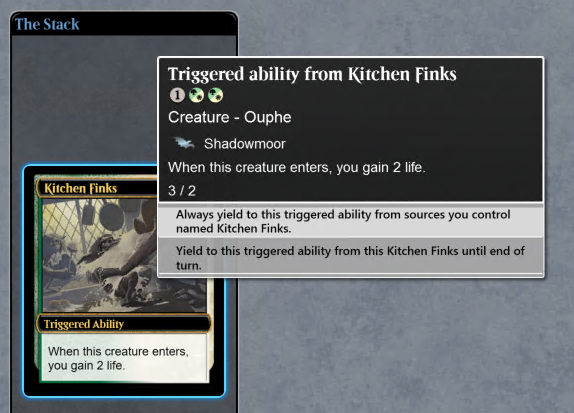
Auto-Yield to Combination Triggers
If you have a card combination that involves sacrificing a card over and over again, be sure to right-click the triggered ability of what you want to sacrifice on the stack before you begin, then choose one of these options:
- Always yield to triggered abilities from cards named {CARD NAME] you control.
- Yield to triggered abilities from this [CARD NAME] until end of turn.
Auto-Yield to Recurring Triggers
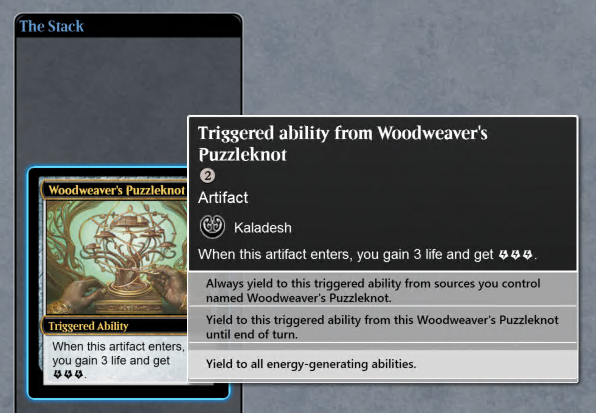
The same principle is true for triggers that produce energy and certain other recurring resource-gathering abilities. A third option appears in addition to the ones above:
- Yield to all energy-generating abilities.
Auto-Yield to Unintuitive Decisions
Say you control a trigger that could help your opponent’s creatures because you don’t currently have any creatures on the battlefield. While that trigger is on the stack, right-click it to access the extra options available to avoid aiding your opponent and to save clicks later:
- Always zero to opponent’s creatures
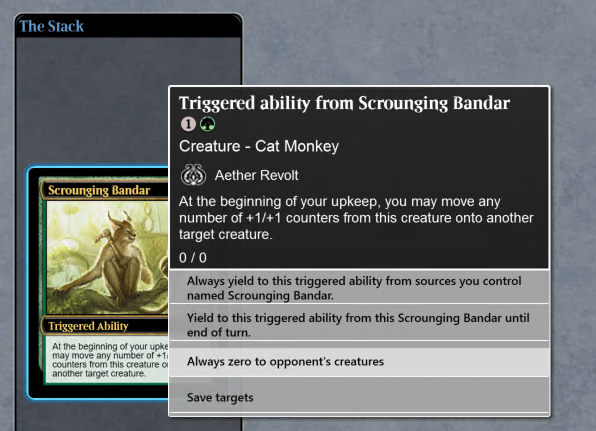
In Scrounging Bandar’s case, for maximum time savings, choose the first and third options.
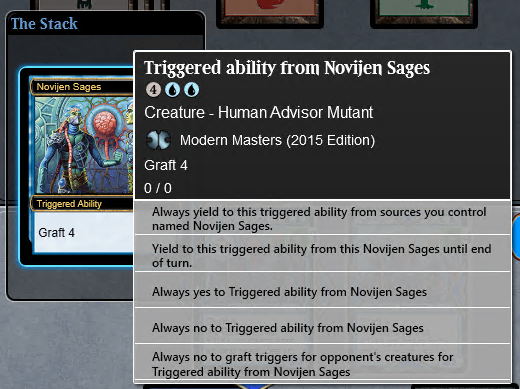
For graft triggers, this option will optimize your gameplay:
- Always no to graft triggers from opponent’s creatures: Triggered ability from {CARD NAME}
Note: There are some rare exceptions to this (e.g. Cytoplast Manipulator).
Odds & Ends
Accessing Draft Logs
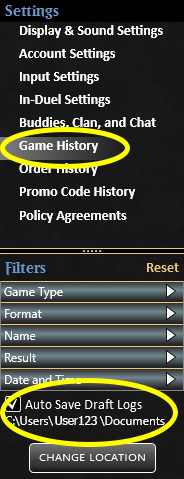
Want to go back and check your picks for each pack in a Magic Online draft event? Before the event begins, click the box shown below in the Account scene to have a text output of your draft saved to your computer. Use the Change Location button if you want to alter the file path on your machine. The log will show the cards that were available in each pack you reviewed, which cards you reserved, and which cards you selected.