Deckbuilding
Constructed decks are built in Magic Online’s Collection tab. The Collection tab shows you the quantity of each card you have collected to date. Those cards are displayed in the top pane, while the current deck you’re building is shown in the bottom part of the window. Here is an example of a completed Commander deck:
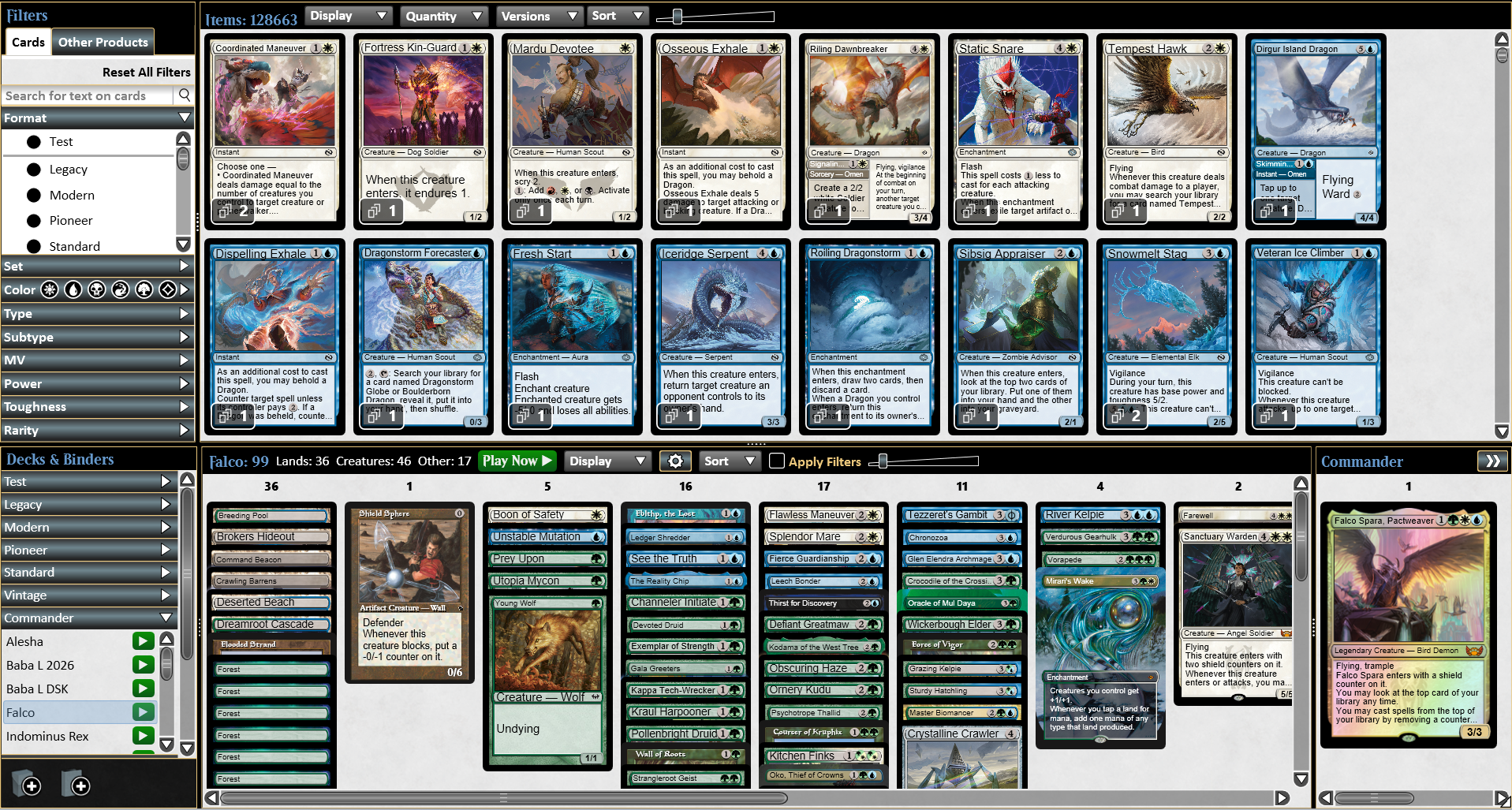
Your decks are sorted by play format – click the arrow beside the format’s name to expand the selection.
Basic Deckbuilding
To get started with adding or importing a new deck, click the Add Deck icon at the bottom-left corner of the screen.
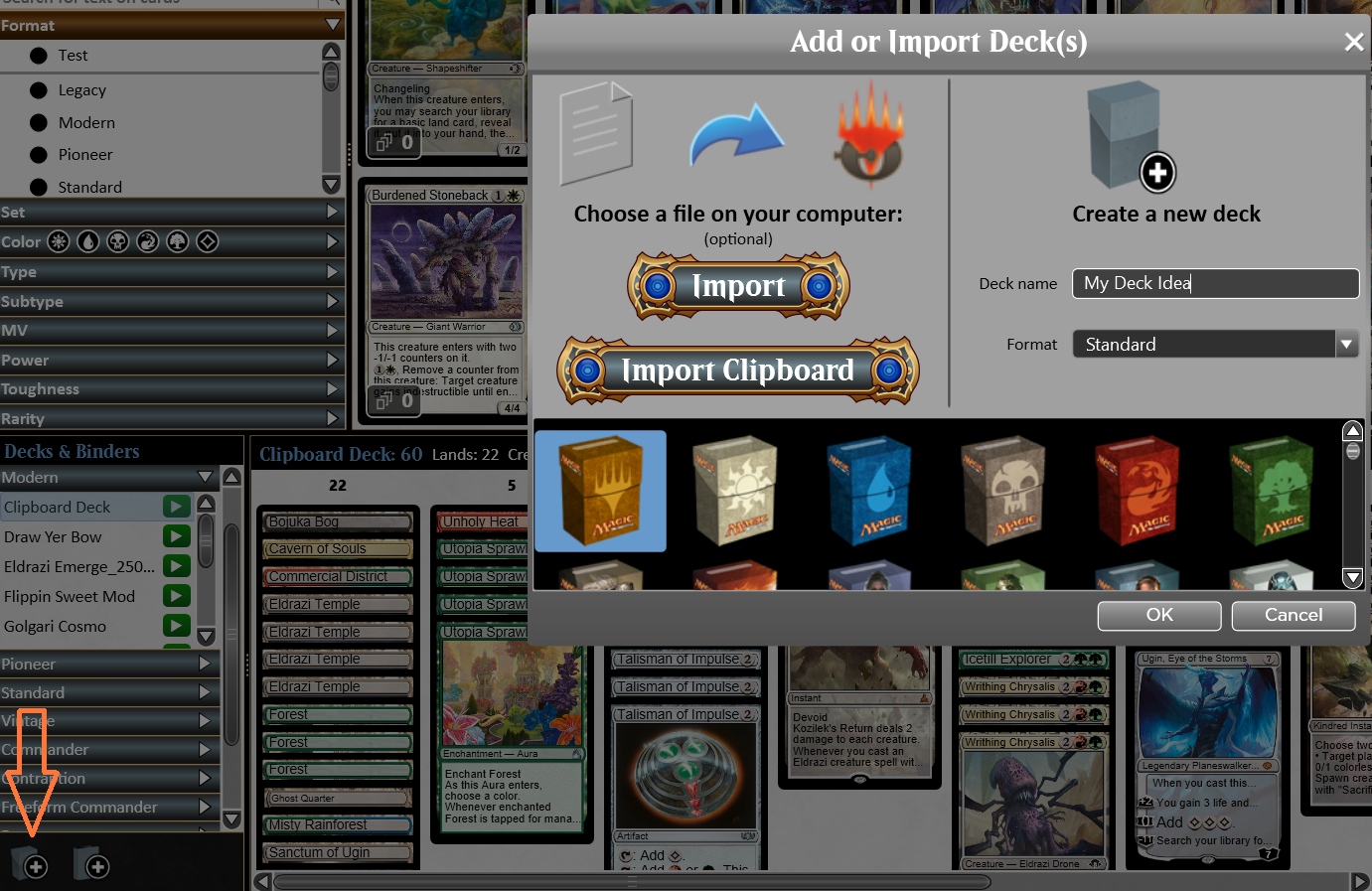
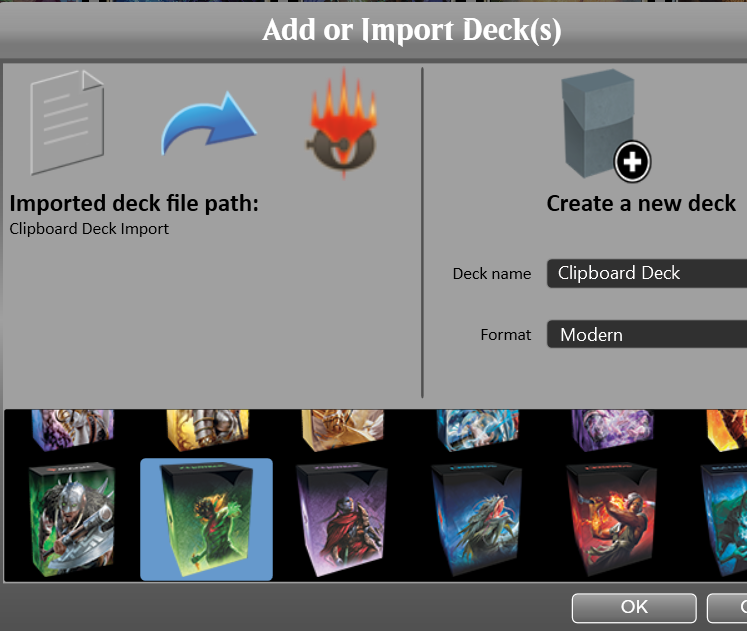
- If you’re building the deck from scratch, input its name and play format, choose a deck box image, and click OK.
- Want to instead import a downloaded decklist (as a text file or in our game-specific .dek file format) or even a list copied from your clipboard? Choose the appropriate button.
Finding & Adding Cards to a Deck
A large group of object filters are located on the left pane of the Collection scene that will help you find cards for your deck. You can filter by Format, Set, Color, and more. Plus, you can input rules text or partial/full card names into the search bar.

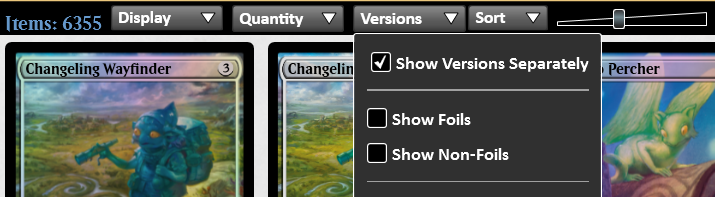
Meanwhile, methods to view and sort search results are found across the top Collection window. These include Versions (see all the art/foil/promo options, or just most recent), Display (show card images or a table of text), and Quantity (amount in your collection, including zero).
For instance, here’s a search of all two-mana blue Wizards in Modern found in this collection using one set of view/sort options:
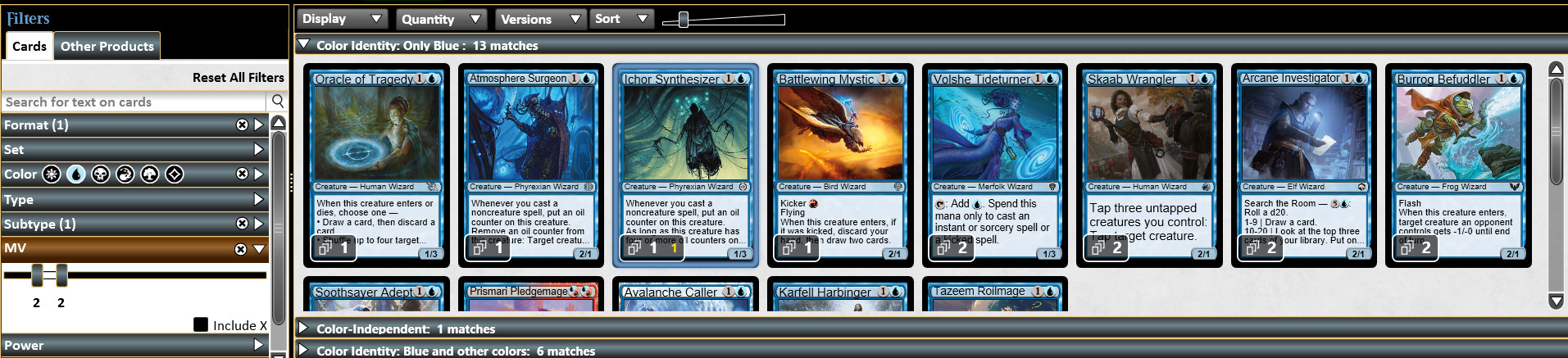
When you filter by colors, the game displays results specially to assist Commander deck builders:
- The top two groups are important for Commander: cards fully within the search’s color identity, and those that are color-independent (colorless – thus, format-legal).
- The third group shows off-color hybrid and gold cards, which can be useful for formats other than Commander.
Want to see the full scope of options, even those you haven’t yet collected? Adjust the Quantity slider to 0 and the full menu appears.
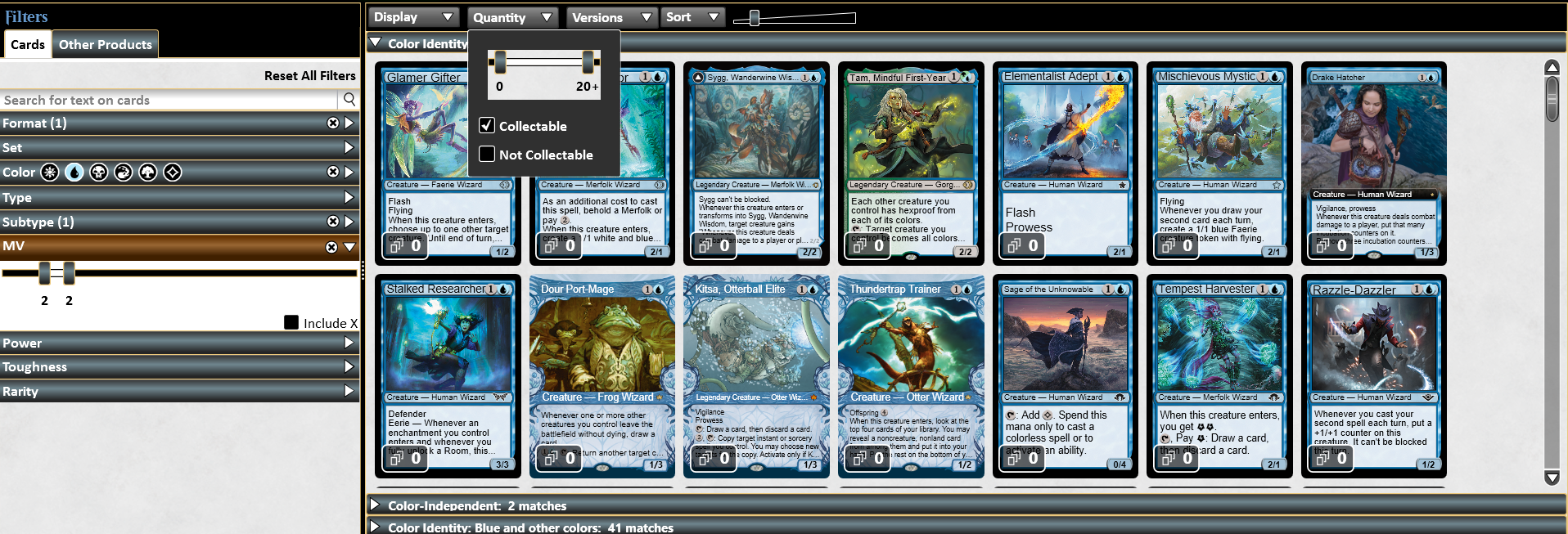
To add one copy of a card to your deck, just double-click on that card or drag it into the bottom pane. If you want to add multiple copies of a card at once, you can right-click on that card and select Add 4 to deck.

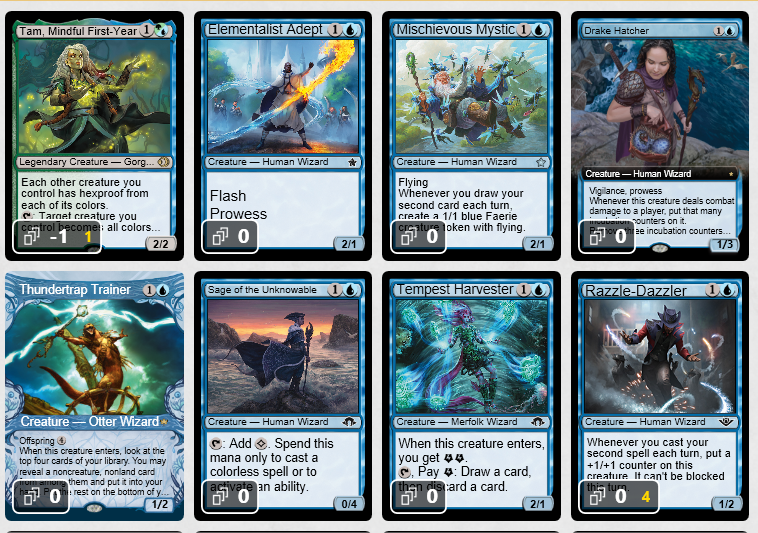
A yellow figure indicates the number of copies in the current deck. If a white quantity number is negative, you don’t yet possess enough copies in your Collection to play this deck in a game. However, the same copy of a card can be assigned to multiple decks at once.
Deckbuilding Pane Features
As you construct your deck, you can arrange cards through flexible means. You can highlight a group of cards via click-and-drag to move them, sort the deck by right-clicking in the deck’s white space and picking Sort, or even clone the deck to create variants. Play around with the features to become more familiar.
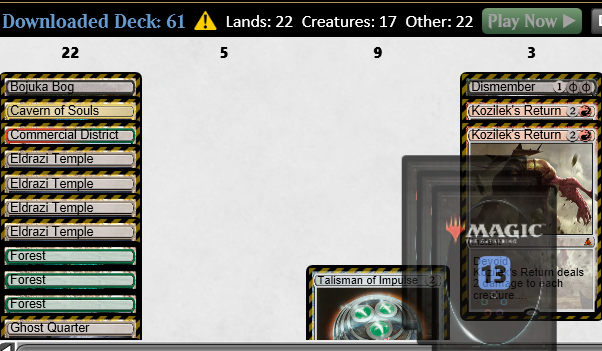
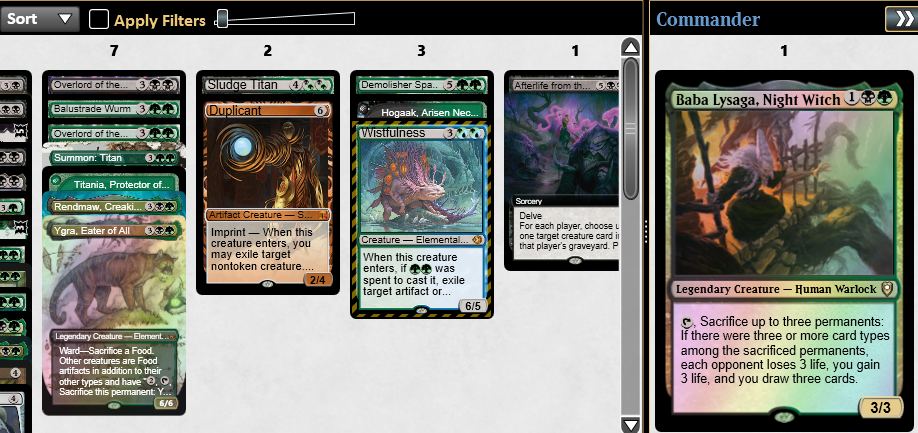
The sideboard is its own zone and can have cards sent to it the same way. Cards with the Companion ability must be placed in the sideboard to enable use. For Commander deckbuilding, color identity is dynamically defined by the commander(s) put into the Commander pane.
Deckbuilding Features
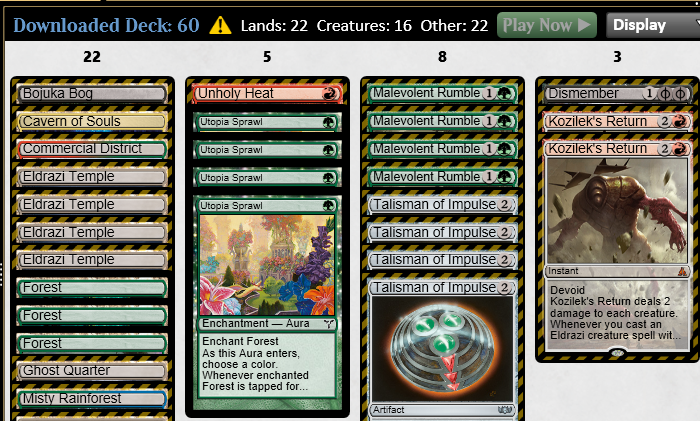
Important: While you are allowed to add cards you don’t currently possess in your collection to a deck in order to design it, you won’t be able to play any games with the deck until the deck is made legal. Missing or illegal cards will have yellow caution-tape borders. A yellow triangle will also appear when a deck is too large or small for the chosen format.
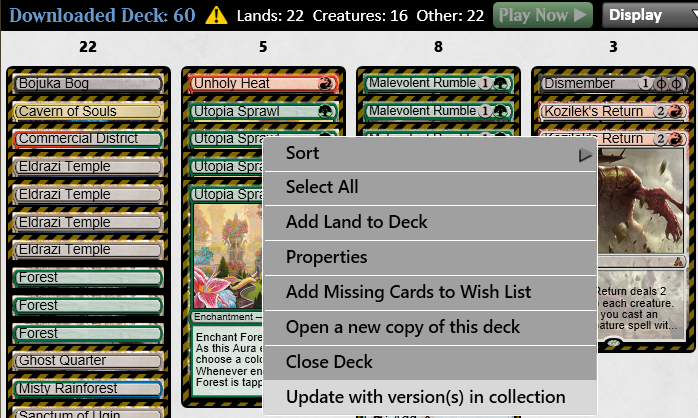
Note: If you have other versions of a missing card available, right-click in the deck window’s white space and select Update with version(s) in collection to make the swap.
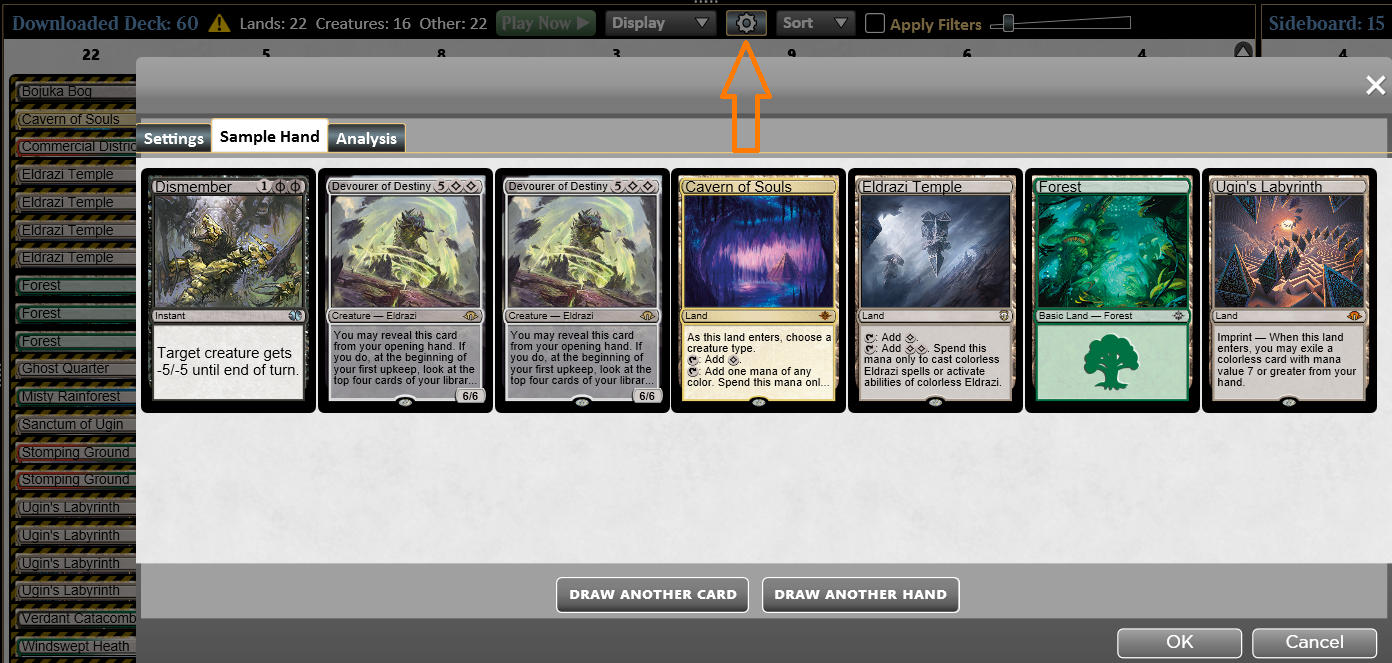
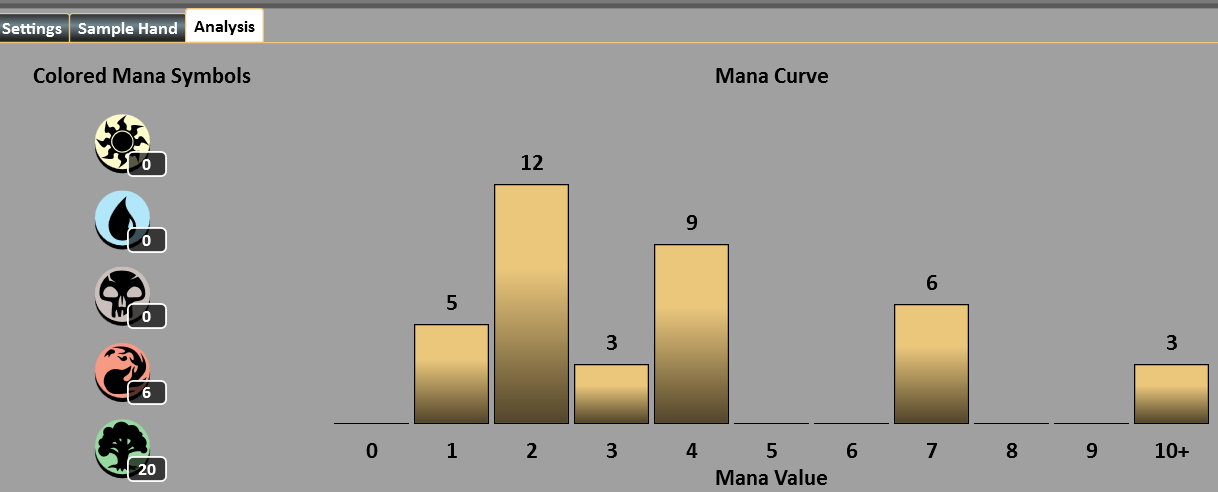
Basic deck information tools can be found under the deck’s Settings (the gear icon) – draw sample hands and see the mana curve/mana symbol distribution at a glance!
1-Click Play from Collection
Once a deck is legal, you can immediately join a game with it in our Open Play rooms! Choose the green Play Now button to get queued into the next available match – single-game for Commander, and best-of-three for all other formats. Either you will immediately join a created match, or one will be opened for you.
Deck Management
Magic Online automatically saves your deck on our servers (and not your local computer) when you leave the Collection scene or switch to a different deck.
The list of formats and decks in the bottom-left section houses another set of controls. Right-clicking on a deck name provides these new options (you can shift-click or CTRL-click with the right mouse button to select multiple decks at once)
- Export a deck to your local drive in either text format or Magic Online’s unique .DEK file format
- Delete a deck you no longer need.
- Be super-careful with deletion as those decks cannot be retrieved.