Play Sealed Deck, Draft & Cube
Here's how to play Sealed Deck, Draft, Cube, and more!
Find a Limited Event
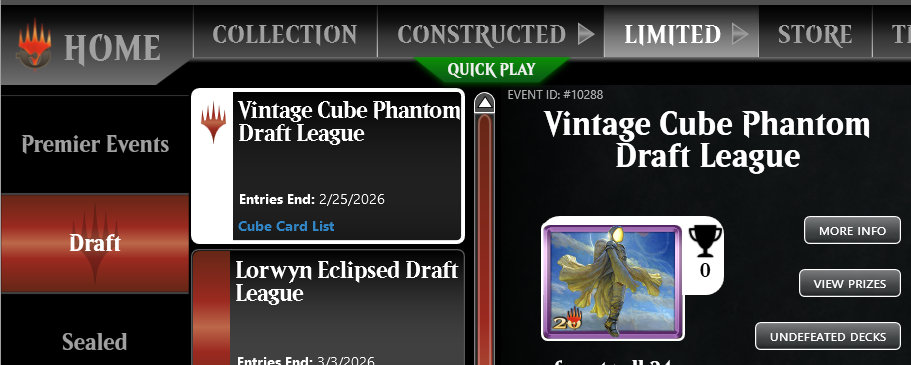
To join a Limited event, click the Limited tab at the top of the screen. From there, pick your event - if you're seeking Cube, it will appear under the Draft tab.

Limited Lingo
Some events are labeled as Phantom – they allow you to enjoy a play experience with the cards, but those cards are not added to your collection at the end of the event. All Cube events are offered as Phantom. If you want to play in events that build your collection, make sure you don’t select Phantom events.
There are two predominant event structures on Magic Online – Swiss and Single Elimination
- Swiss events allow players to compete in all rounds. Each round’s pairings are generally based on record. In League play, you’re matched up with an opponent with a similar record whenever one is available.
- Single Elimination tournaments only permit each match’s winner to advance to the next round.
Unlike Open Play matches, watchers are never permitted in Events.
Prizes for Scheduled Events and Queues are awarded by the system when the event is fully complete (after the playoff, if applicable). Prizes for Leagues are awarded at the end of each stage (for multi-stage Leagues) and at the end of the League course.
Draft Basics
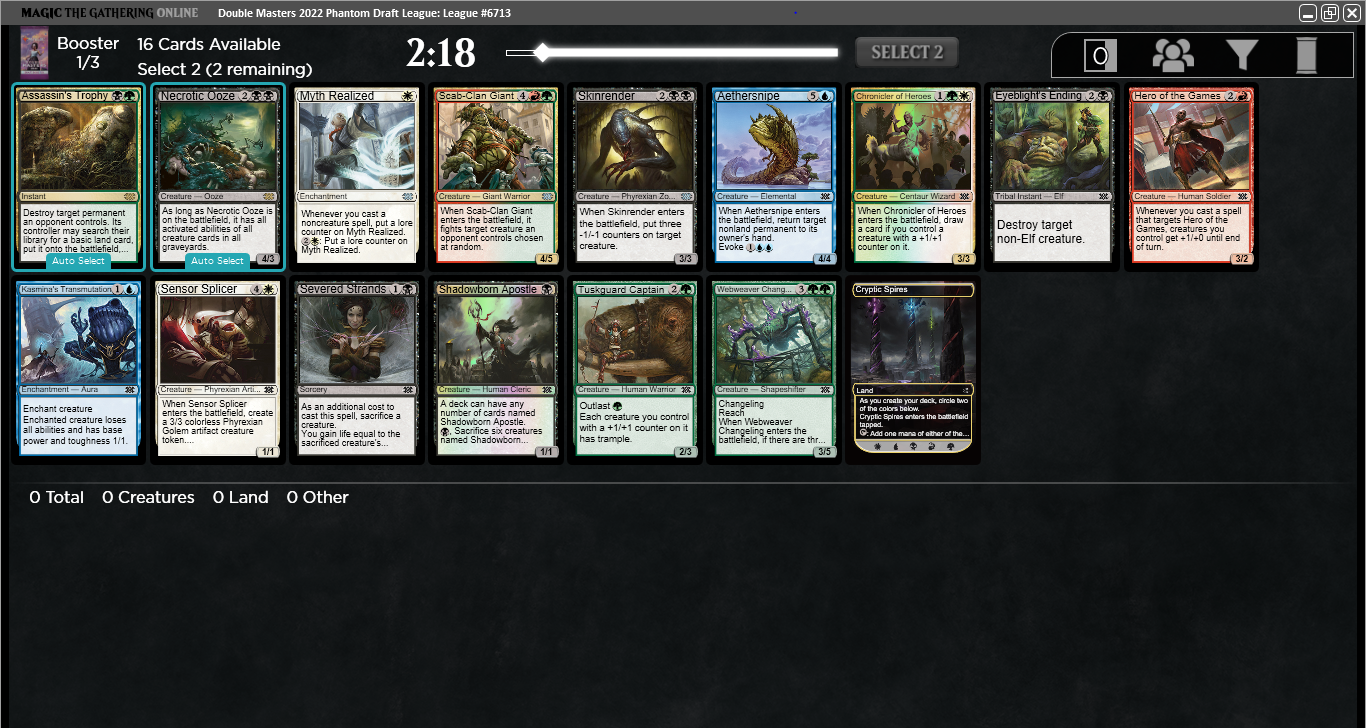
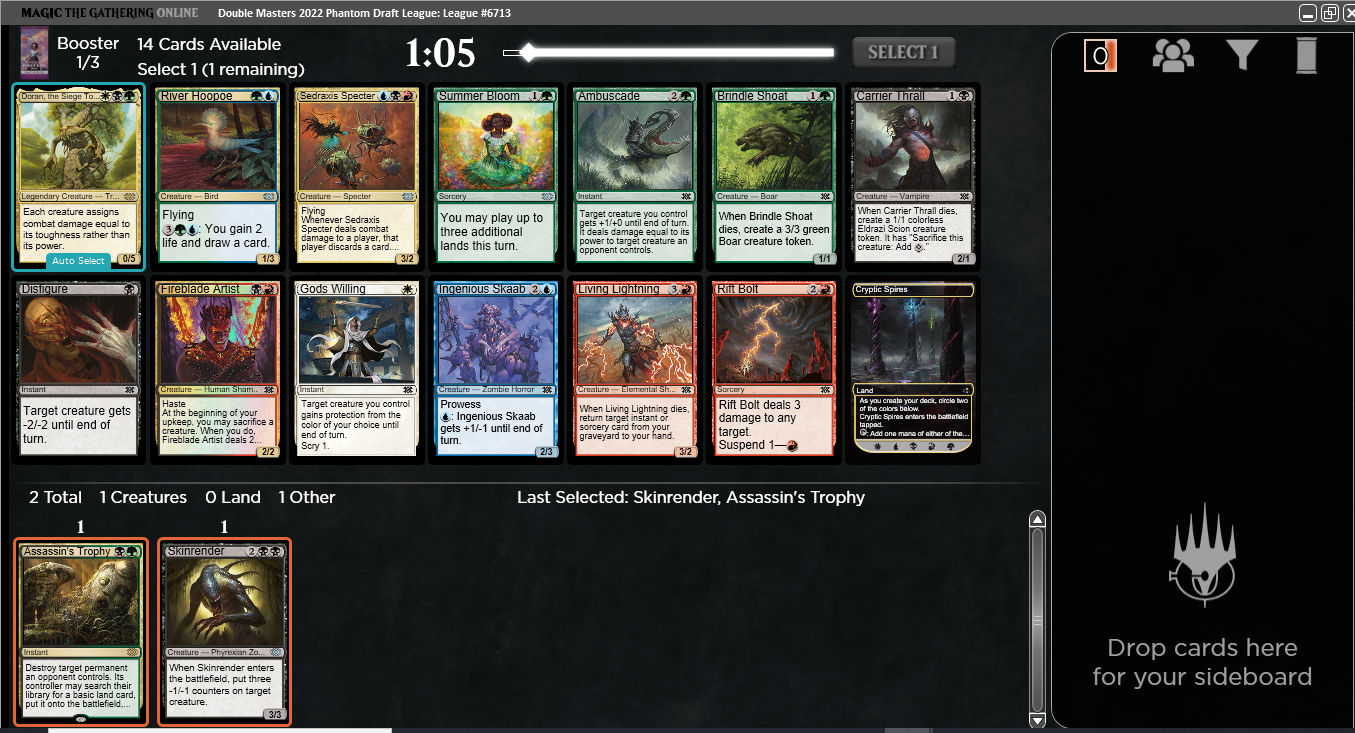
The draft window displays all the information you’ll need while drafting. The cards available to select, as well as information on time left to pick and the number of picks to make are in the top half of the window. The cards you’ve already taken for your main deck are in the bottom half of the window, much like building a deck in the collection.
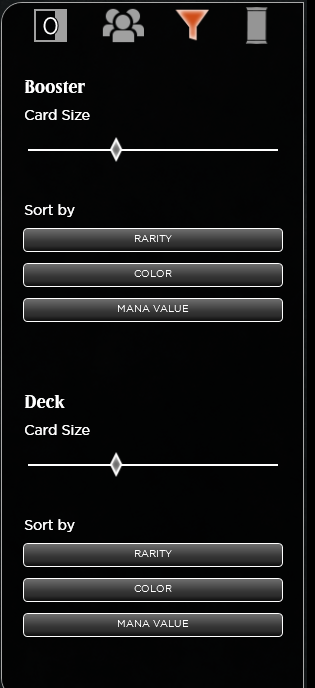
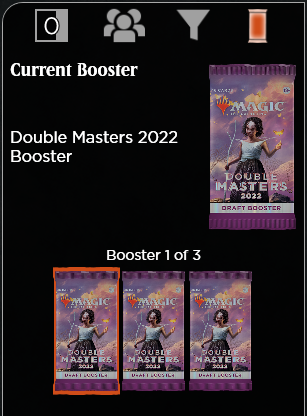
Hovering over icons in the top-right section of the window opens the Play Blade, the spot for mid-draft information. Click an icon to toggle the Play Blade open or closed.
 |
 |
 |
- The square with a number indicates your sideboard and how many cards are currently there.
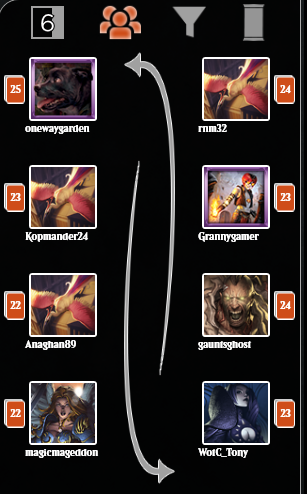
- The person icon opens a graphic showing the draft pod – player usernames, picks made, and the current direction of picks.
- Within a draft pod, the first booster pack of each draft is drafted clockwise (left), the second pack is counterclockwise (right) and the third pack is drafted clockwise (left).
- The filter icon shows ways you can filter your selections.
- The pack icon shows the order of packs being used in this draft.
When cards appear for selection, you can do the following:
- Double-clicking a card moves it directly to your main deck.
- A single left-click on a card will highlight and reserve it. If the pick timer runs out, the reserved card will be added to your main deck.
- You can drag and drop a card into either your main deck or sideboard
- Right-clicking a card presents similar options for moving a card
Once a card is selected, the pack will disappear. When another pack is ready to review, it will appear in the same space.
Tip: The timer can appear as 0:00 for a minute or more in between picks – this is quite normal. This occurs if you make your selections faster than the people drafting behind you.
Magic Online will automatically reserve picks based on your current draft deck when a pack is presented. If no card is selected when the pick timer expires, the game will automatically add the auto-reserved cards to your main deck.
Tip: If you disconnect while drafting, don’t fret. After you log back in, you’ll be returned to the current point of the draft. Auto-picks will be made for you if needed.
After all the players in your pod have finished drafting, the game will transition to deckbuilding.
Sealed Deck and Draft Deckbuilding Window - Leagues
After completing the draft portion of a League or after joining a Sealed Deck League, your card pool appears in the top of the window and represents your full sideboard. The main deck will be in the lower pane. Add cards from the top to your deck at the bottom by double-clicking, dragging, or using the right click context menu.
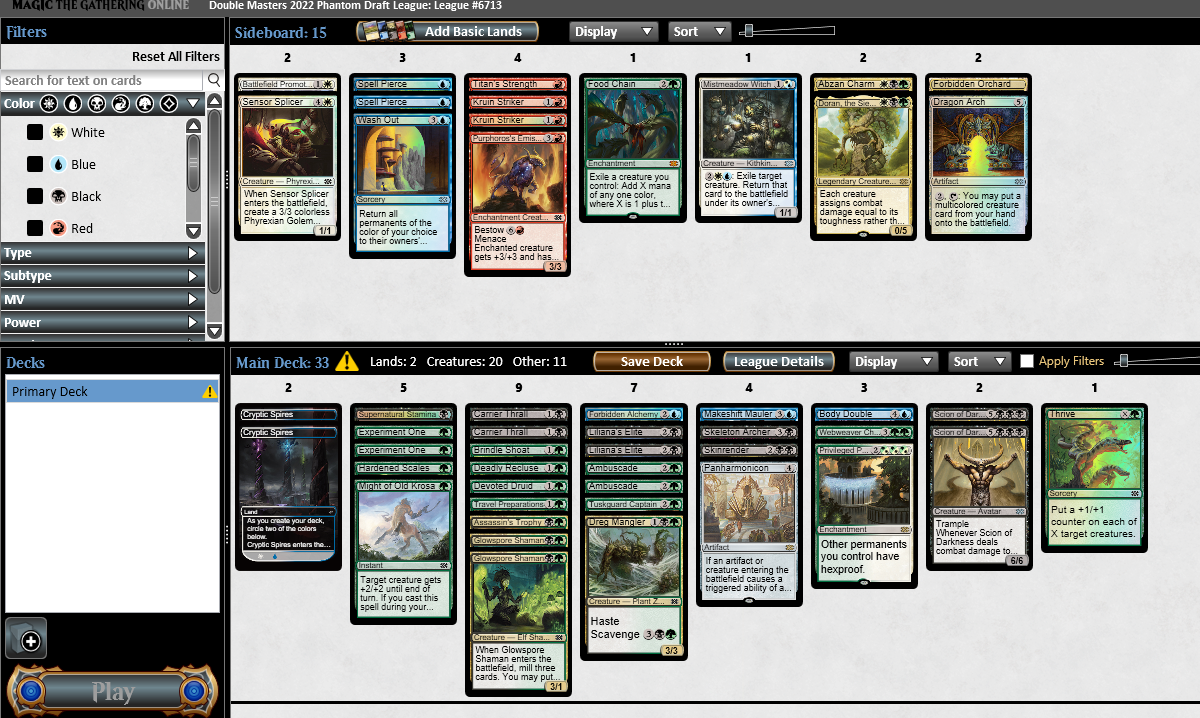
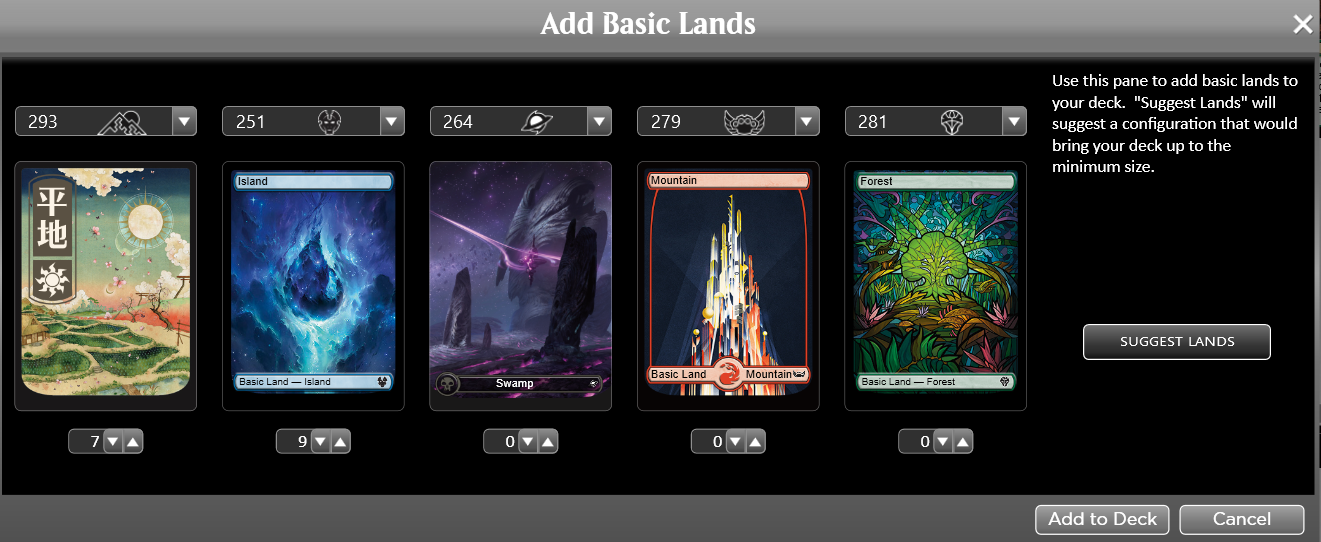
To add basic lands, choose the Add Basic Lands button. You can choose to use the set's default lands, or you can choose to use lands from your Collection with your favorite art! The picker will suggest an amount of lands to get to the minimum deck size, and it will consider all mana symbols in your main deck. So if you want to exceed 40 cards in normal Limited or are playing an off-color card, double-check your lands prior to submission.
After completing and saving a Primary Deck, you can opt to create a second deck out of the same card pool. Click the Add Deck button in the bottom-left corner. You’ll choose a name for the deck, build and then Save the deck. You can also right-click a deck and create a new copy to edit. This deckbuilding period is untimed, so you have time to build up to 20 league decks if you like.
Before joining a match, if you have more than one deck, click your preferred main deck to select it for your next match. Once a League match completes, the deck with which you began the previous round will be loaded automatically – without any sideboarding adjustments from last round. You’ll need to return to the Edit Deck area of your League if you want to select a different deck or tweak the current configuration.
Deckbuilding Window – Scheduled Events & Queues
In a draft or sealed deck Scheduled Event or Queue, the deckbuilding period is similar to leagues with a couple important distinctions: there is a time limit in which to submit a deck, and you submit a single deck for the event.
The deckbuilding timer can be found in the top-right corner of the main deck area. After you submit a deck, you can continue to make changes. Every time you click Submit after a change, you’ll update the deck the event will use. If you fail to submit a deck before the timer runs out, Magic Online will submit your entire card pool as your deck, so try to ensure you get a least one deck submitted. Once the first round starts, the submitted deck will be the one for Game 1 of each match.
Note that deckbuilding will immediately end after each player has submitted a deck – even if players would have time left on their deckbuilding timers. This means if you submit one version of a deck, then want to make changes, your changes are not guaranteed to be submitted depending on when the deckbuilding period ends.
Queue Events
Queues are events that start immediately when enough players have joined.
2-Player events are single matches won by the first player to reach two game wins in the allotted time. Generally, 2-Player Queues are reserved for Constructed play.
8-Player events are three-round events that begin when eight players have entered the queue. Each match is won by the first player to reach two game wins in the allotted time. Generally, 8-Player Queues are reserved for Limited play.
- A single-elimination Vintage Cube queue is generally offered year-round.
Clicking the appropriate format under Constructed or Draft under Limited will provide options to join a Queue event.
To join a Queue, click the event you would like to enter, then:
- For Limited Events, click your entry option. As long as the event is not full, that’s all you need to do. The event will start when the appropriate number of players have joined.
- For Constructed Events, ensure your deck in its proper configuration (main deck, sideboard and quantities) in the Collection scene and also in the right side of the Play Lobby before clicking the entry option.
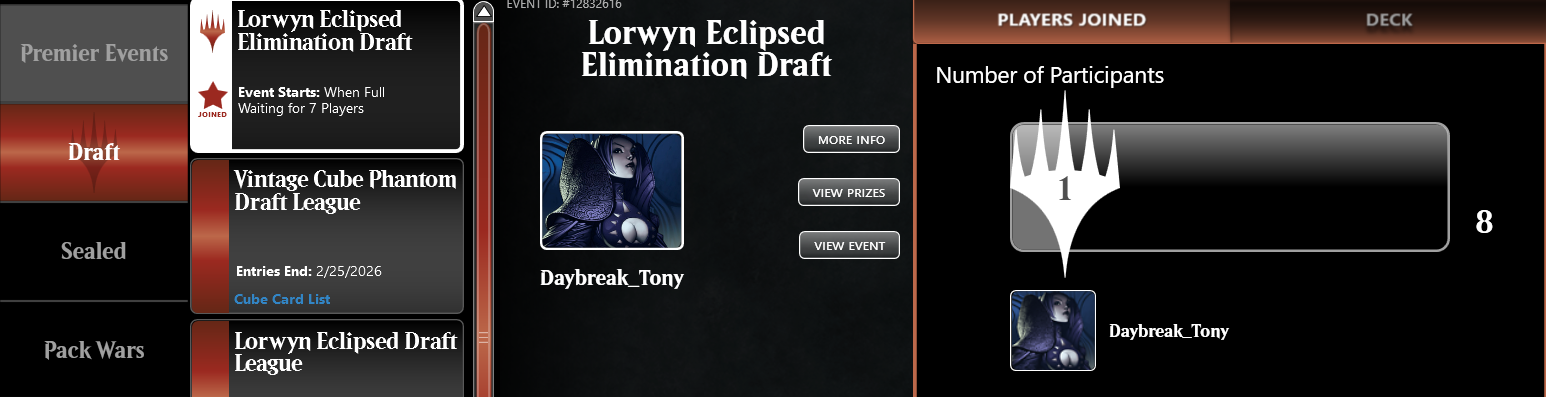
Like Scheduled Events, each round of a three-round Queue event ends as soon as the last match is completed. The Event Details screen tracks how many matches remain, and which players are involved (highlighted in yellow). There is a two-minute break between each round. For Single Elimination queues, eliminated players will be greyed out in the standings display.