Gameplay: Duels & Solitaire
The Duel Scene
The Duel Scene is the heart of the Magic Online play experience - a two-player battle of up to three games! This section will lay out the basics about the game's interface, not the basics of Magic.
All of these procedures assume that you are already in a game. If you have questions that are not answered here, please contact Customer Support at help.mtgo.com (your login and password there as the same as for your Magic Online account).
Anatomy of the Duel Scene
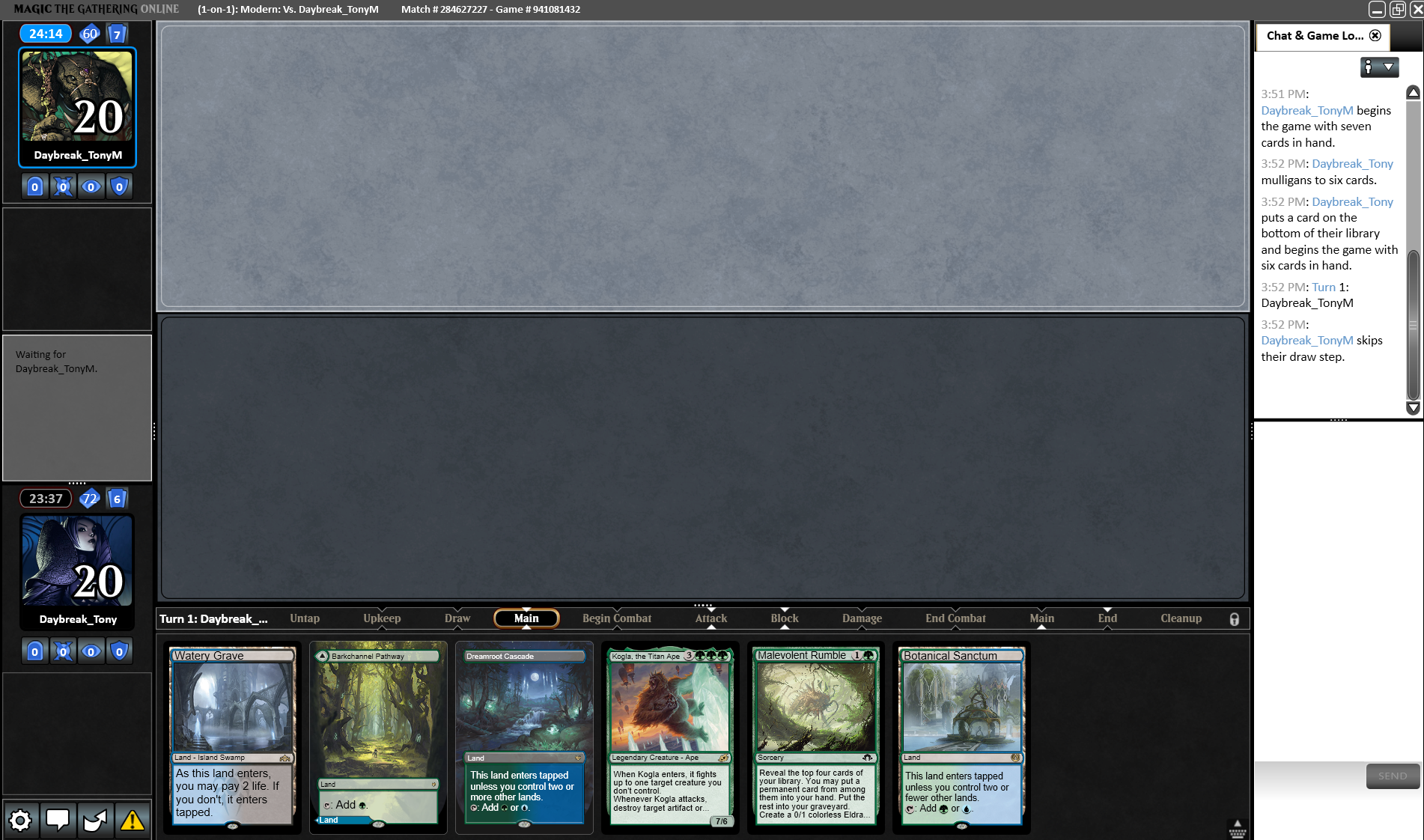
The Duel Scene has a number of different features to track:
Prompt Box
The Prompt Box is the main source of information on what can or must be done to progress the game. If it's not your turn to act, it will be greyed out. If action is on you, it will highlight with a blue light and your timer will be running.


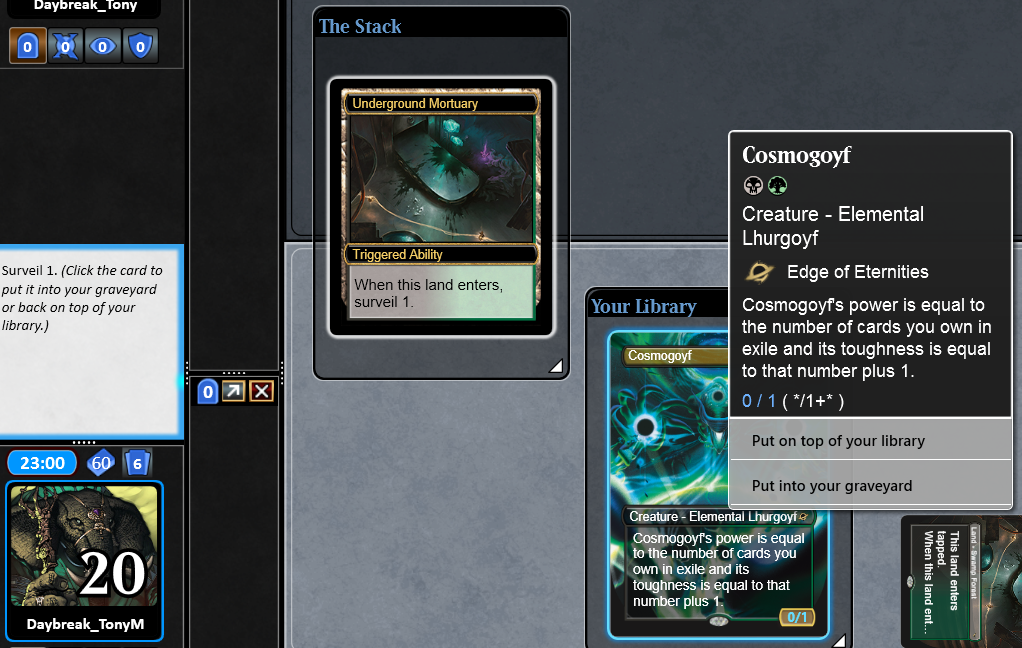
Follow the prompts in the Prompt Box to see what will happen if you make a choice or pass priority.
Zones & Key Game Info
Below the Prompt Box is your avatar surrounded by several bits of key information. Above the Prompt Box, you will see the same stats for your opponent.
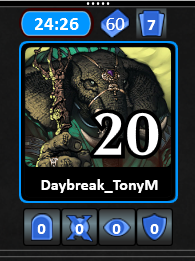
Above the avatar:
- Match Timer (a.k.a. chess clock) - If your timer runs down to zero, you lose the match regardless of the game score.
- Library and Hand Size
Meanwhile, each zone below the avatar can be popped out and is expandable. You can hover over cards in each zone to zoom:
- The headstone icon controls the Graveyard.
- A mini-graveyard is displayed when you have the main graveyard window collapsed.
- The X icon is for the Exile zone - specifically, cards in exile not tied to specific abilities on the battlefield.
- Cards exiled via an ability on the battlefield (Banishing Light, Kitesail Freebooter, etc.) will appear underneath the permanent that exiled them.
- The eye icon represents Revealed Cards which displays cards that have been revealed from a search of a hidden zone.
- The shield icon is the Effects area that shows replacement effects that have been created and are waiting to apply (damage prevention, etc.) or resolved emblems.
Phase Bar & Stops
Magic Online uses stops to give players priority during different phases of the game so they can cast spells and use abilities. The Phase Bar details in which phase or step the game is currently taking action.

By default, Magic Online has the most common stops set, but you can enable or disable stops for every phase and step on either player's turn. Stops on your turn are marked along the bottom of the Phase Bar, and stops on the opponent's turn are across the top.
To toggle the stop on or off, right-click on the phase/step name, choose which player's turn on which you want to stop, then left-click Set Stop.
Important: You must enable the stop before the game progresses to it, or it will be skipped this turn.
Re-size & Pop Out Zones
You can customize your Duel Scene layout by dragging the grid splitter along some boundaries. Look for a set of dots between the battlefield, your hand, the logs, the prompt box, and more.
You're also able to pop out certain zones or even re-arrange where the Prompt Box appears on screen. To do so, hover over the zone until a pop-out icon appears. Experiment to see what works best for you!
Here's a comparison between a standard setup and a custom one:
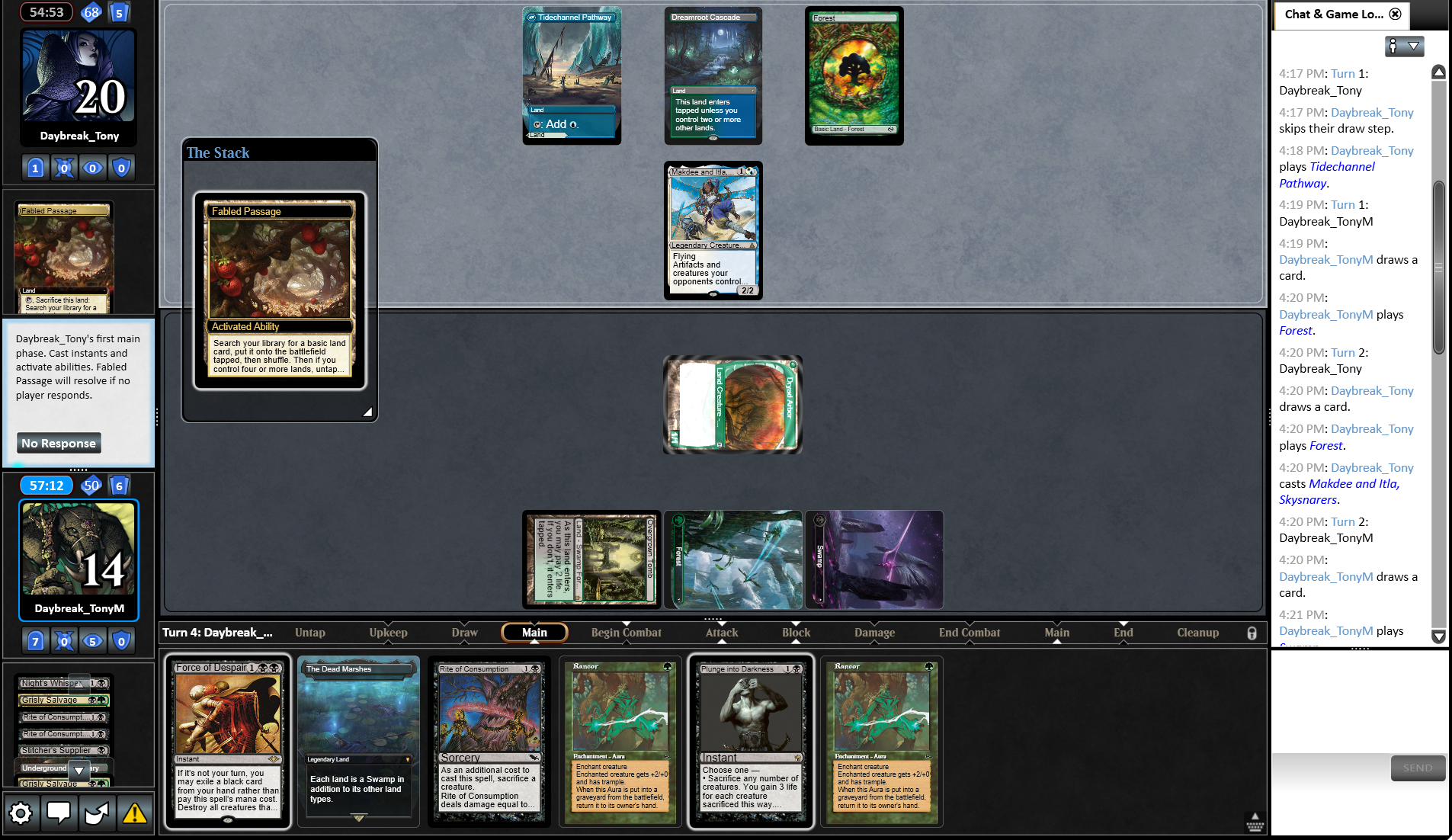
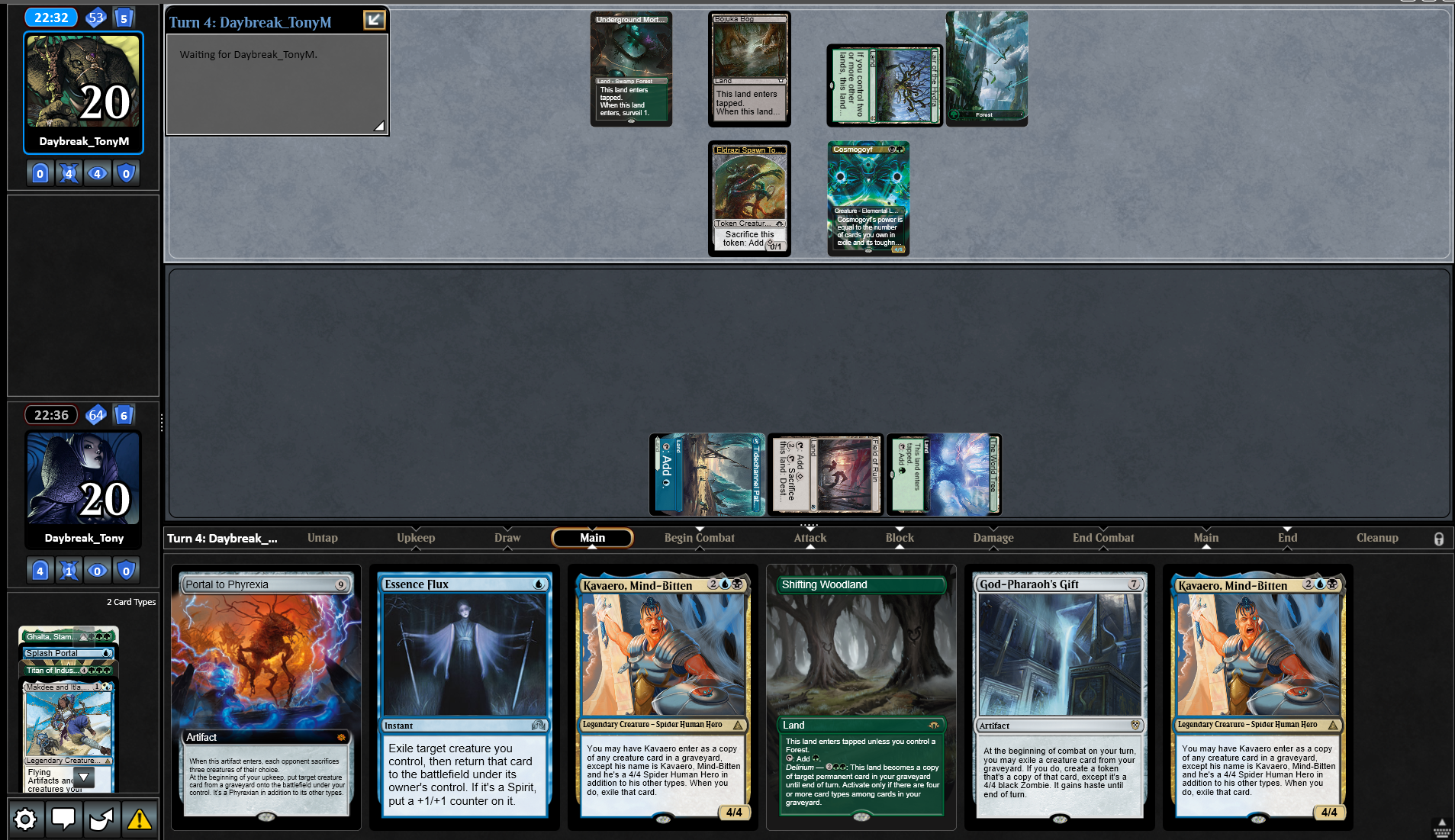
If you have a group of adjustments that you like and don't want to reset them every time, be sure to Export the Settings file to your desktop - they'll be able to be Imported later (see Tips & Tricks for more info).
Options & Chat/Game Logs
At the bottom-left of the Duel Scene, there are a series of icons on which you can take action:
- The gear icon is Settings – this lets you adjust card sizes, volume, and accesses many of the auto-yields available by right-clicking inside the battlefield (see Tips & Tricks for information on these yields)
- The chat icon toggles the Game Log and Chat windows on and off
- The moving arrow icon returns you to the Event Details window – useful for reviewing match settings or looking at standings in tournament play.
- The alert icon refers to all active Yields (see Tips and Tricks) – it’s greyed out when there are no active yields.
When a game starts, the Game Log will appear on the right side of the battlefield. This log shows important game information as it happens, including spells cast, abilities activated, and other game details and lets you review previous game actions.
Taking Game Actions
Play Lands
Click a land card in your hand to play it. Under normal circumstances, you can only play a single land each turn, and only during one of your main phases.
Activate Mana Abilities
If a permanent you control has a mana ability (lands, etc.), click it to tap it for mana. If the land can produce more than one color of mana, a menu will open. Click the line with the mana ability you want to use.
Floating mana is displayed in the lower-left corner of the battlefield.

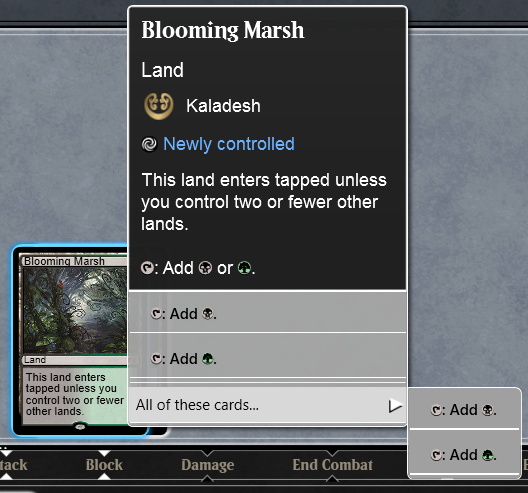
Tip: If you have begun casting a spell, and are activating mana abilities to pay for it, you can hold the W key while clicking your land to bypass this menu and have the client auto-select the first option listed on the mana source for you.
Tip: Press Ctrl+Z to undo the activation of the most recent mana ability (such as tapping a land). You can repeat this command to undo multiple mana abilities, though you cannot undo if it would require reversing a spell or activated ability.
Cast Spells
All cards that could be cast or played at the current moment of the game, whether they are in your hand or in another zone, will appear highlighted. This applies even if you cannot yet pay all of that card’s costs. Zones other than the hand with cards that can be cast will pop open.
Left-click a highlighted nonland card to cast it.
If the card you are casting requires mana to cast beyond what is already in your mana pool, you will receive a message stating how much mana is required and the opportunity to activate mana abilities to help pay for it.
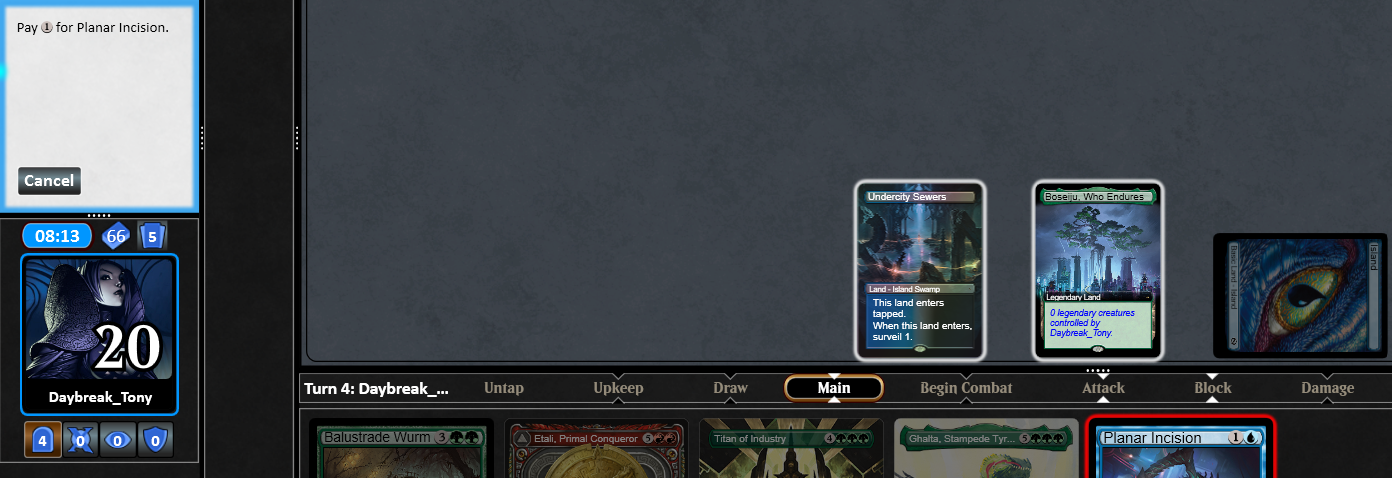
Tip: Spells that cost no mana open a menu with a Cast option to prevent you from accidentally casting the spell at the wrong time with an errant mouse click.
Follow the instructions in any additional prompts, such as choosing targets or multiple modes, or distributing counters or damage. To target something, left-click it. If you want to target a player, left-click their avatar.
Once you finish casting the spell, it will move to the stack. This is represented in Magic Online by a temporary window on the battlefield.
Tip: To hold priority after casting a spell or activating an ability, hold the CTRL key down continuously from before clicking the spell/ability until after it reaches the stack (including while choosing targets & paying costs).
Paying Alternate and Additional Costs
If a spell or ability has alternate or optional additional costs, these will generally be indicated by a menu that opens when you click the card. Each option will appear on a separate line within that menu.
Phyrexian mana or other payments of life can be paid by clicking your avatar, though it cannot be the final mana paid as part of casting a spell this way.
Attacking and Blocking - The Red Zone
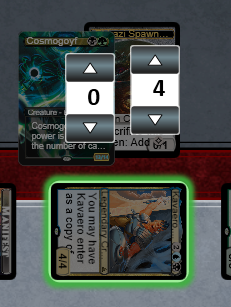
At the start of the Declare Attackers step, the Red Zone appears. To choose attackers, left-click each creature once so that it moves into the Red Zone. If a creature could attack more than just the opponent (a planeswalker or battle, for instance), a menu will appear - click to confirm your choice for that creature.

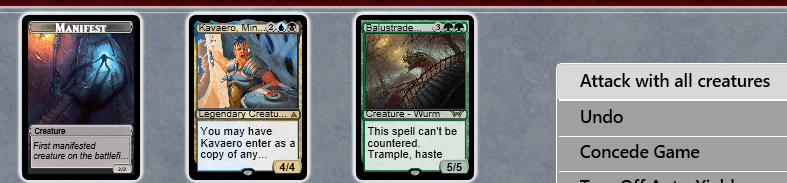
If you want to attack your opponent with all of your creatures that are able, right-click in an empty spot of the battlefield and choose Attack with All.
If you change your mind on sending in a creature, left-click it again to remove it from the Red Zone. Once you have your set of attackers, click OK in the Prompt Box.
At the start of the Declare Blockers step, click one of your creatures, then the creature you want it to block. When all your blocks are assigned, click OK. When the Combat Damage step begins, the attacking assigns damage to creatures and/or players/planeswalkers.

Sideboarding
After each non-Commander game concludes, players receive three minutes to sideboard. The sideboard can contain up to fifteen cards and can vary in size so long as the main deck's minimum size (usually 60 cards) is maintained. Simply drag cards between zones to make the swaps.
When you are satisfied, click Submit Deck. If you are the first player to submit your deck, you can continue to make changes and submit them if needed - but only until the other player submits their own deck. If you don't submit anything before time runs out, the version of the deck you played last game will be used.

Solitaire
One of the best methods to learn the Magic Online interface and practice is to enable Solitaire mode. To access Solitaire, choose 1 as the number of players when setting up a match.
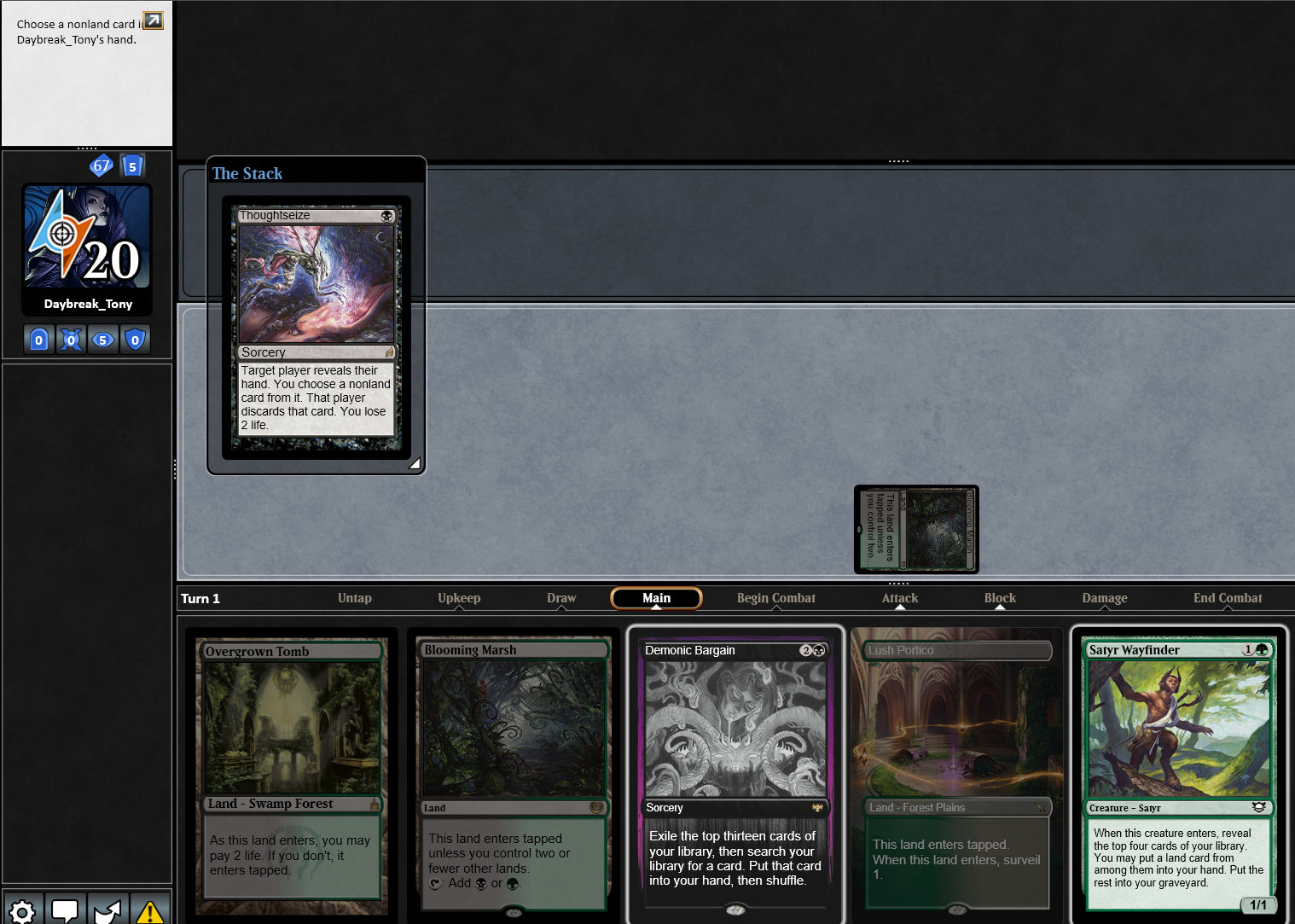
There are a few peculiarities - you attack yourself, effects that target an opponent target you instead, and a few cards may not work like they do in duels or multiplayer. But if you want to practice clicking through actions in an untimed game, this is the mode for you.